Studio Fonts, our second browser extension, is now live on the Chrome Web Store. It shows you which font a page is really using and how it’s set, and it can save that font to a library so you can find it again later.
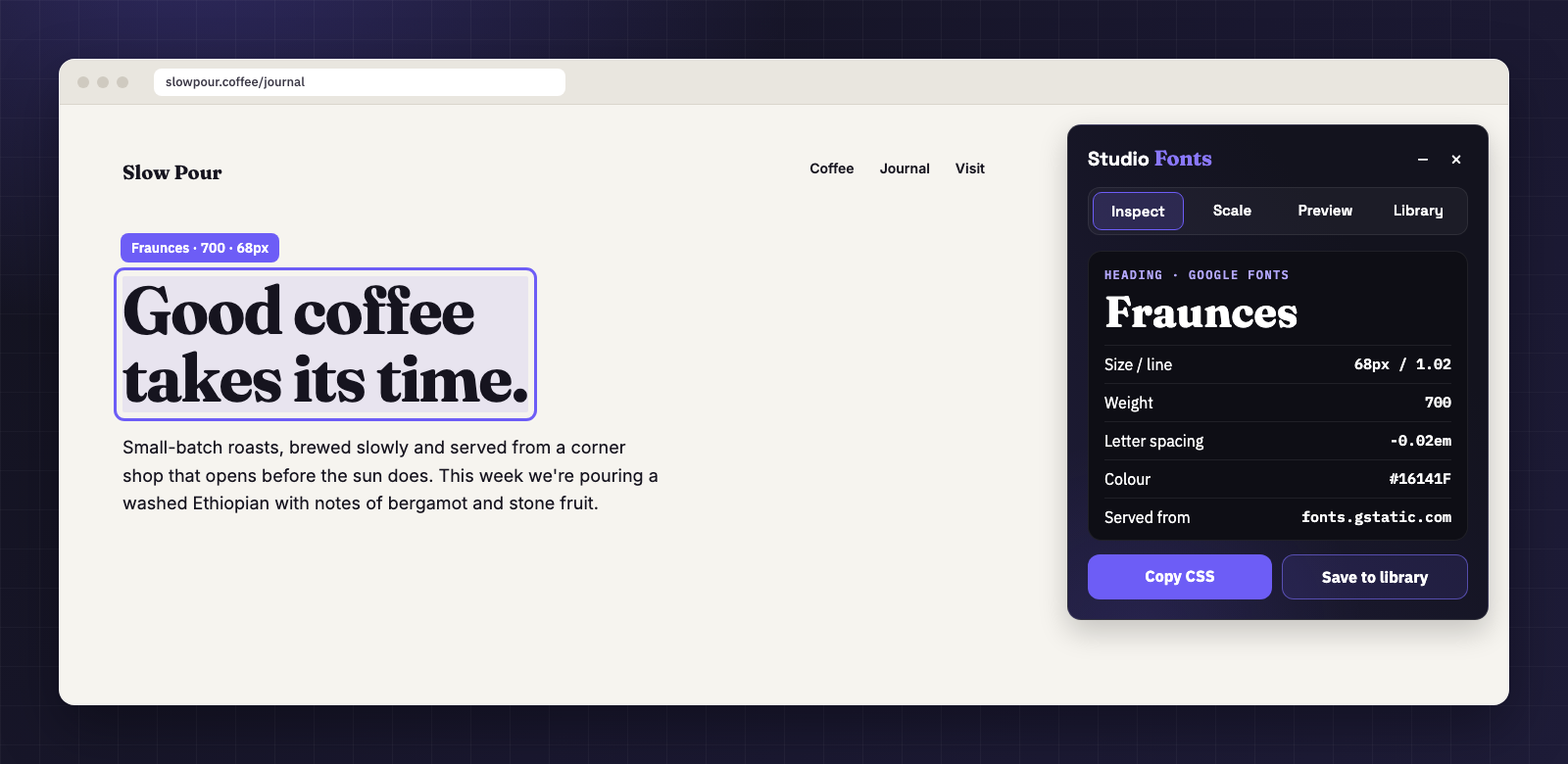
If you design or build for the web, you’ve probably lost time in DevTools trying to work out what font a site uses. The CSS lists a stack of names, and the first one in the list may not be the one that loaded, so you end up digging through computed styles and network requests for the answer. After that comes copying the values by hand and looking the family up on Google Fonts, and the result usually ends up in a notes file. Studio Fonts puts that whole search into one panel that opens on the page you’re looking at.
What you can do
- Inspect any text on the page to see the font that’s actually rendering, even when the first name in the CSS isn’t installed, along with its size, line height, weight, letter spacing and colour. The CSS copies in one click.
- See where a font comes from, whether that’s Google Fonts, Adobe Fonts, a self-hosted file or a system font, plus its variable axes and OpenType features.
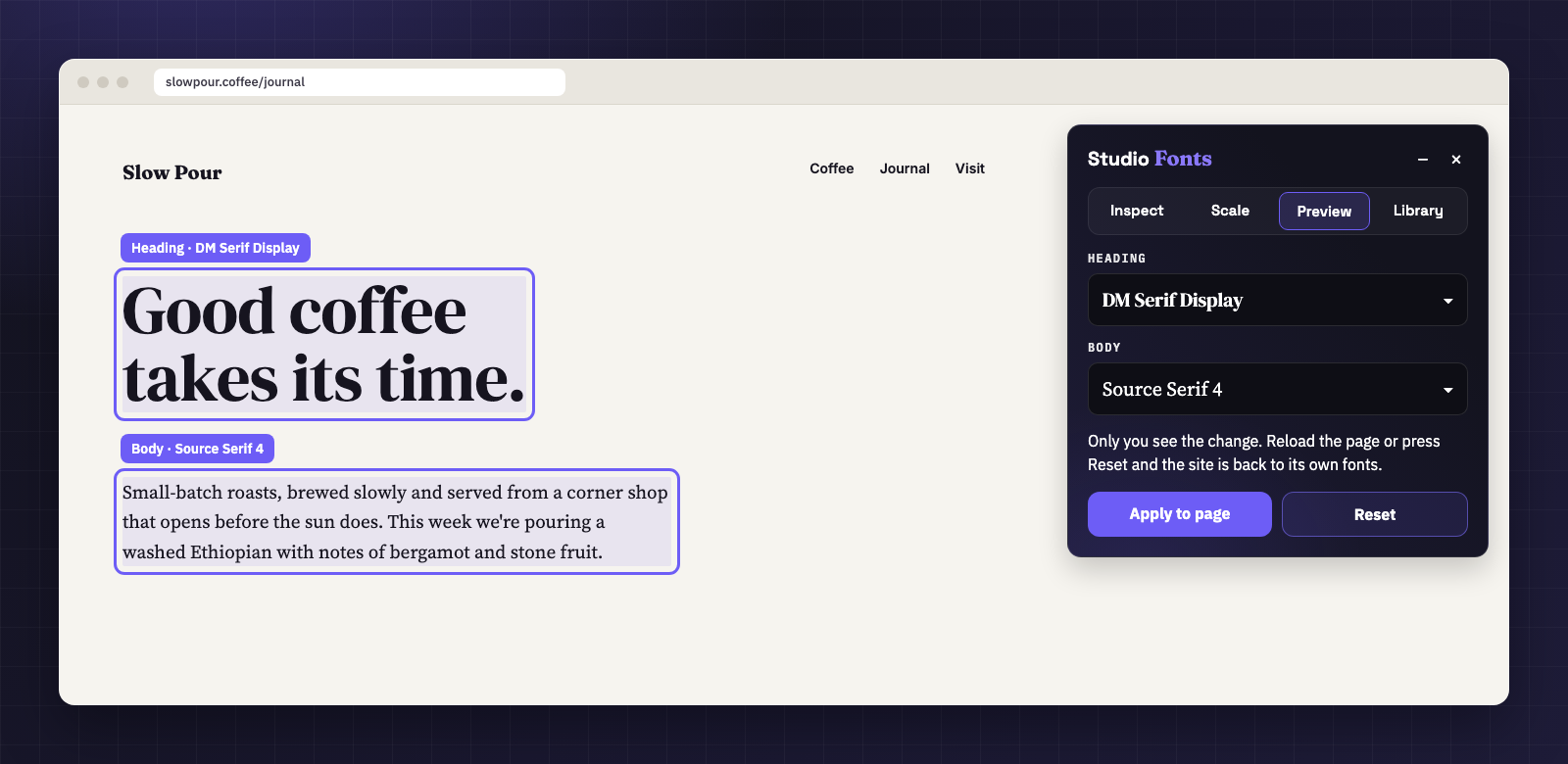
- Preview other fonts live by swapping the heading and body fonts on the page with any of about 300 Google Fonts or the fonts the page already loads. Nobody else sees the change, and one click puts the original back.
- Scan a whole page to list every font it uses, get a typography score with readability checks for body size, line height and line length, and export the type scale as CSS variables or Tailwind tokens.
- Build a type scale from a base size and a ratio, ready to copy as tokens.
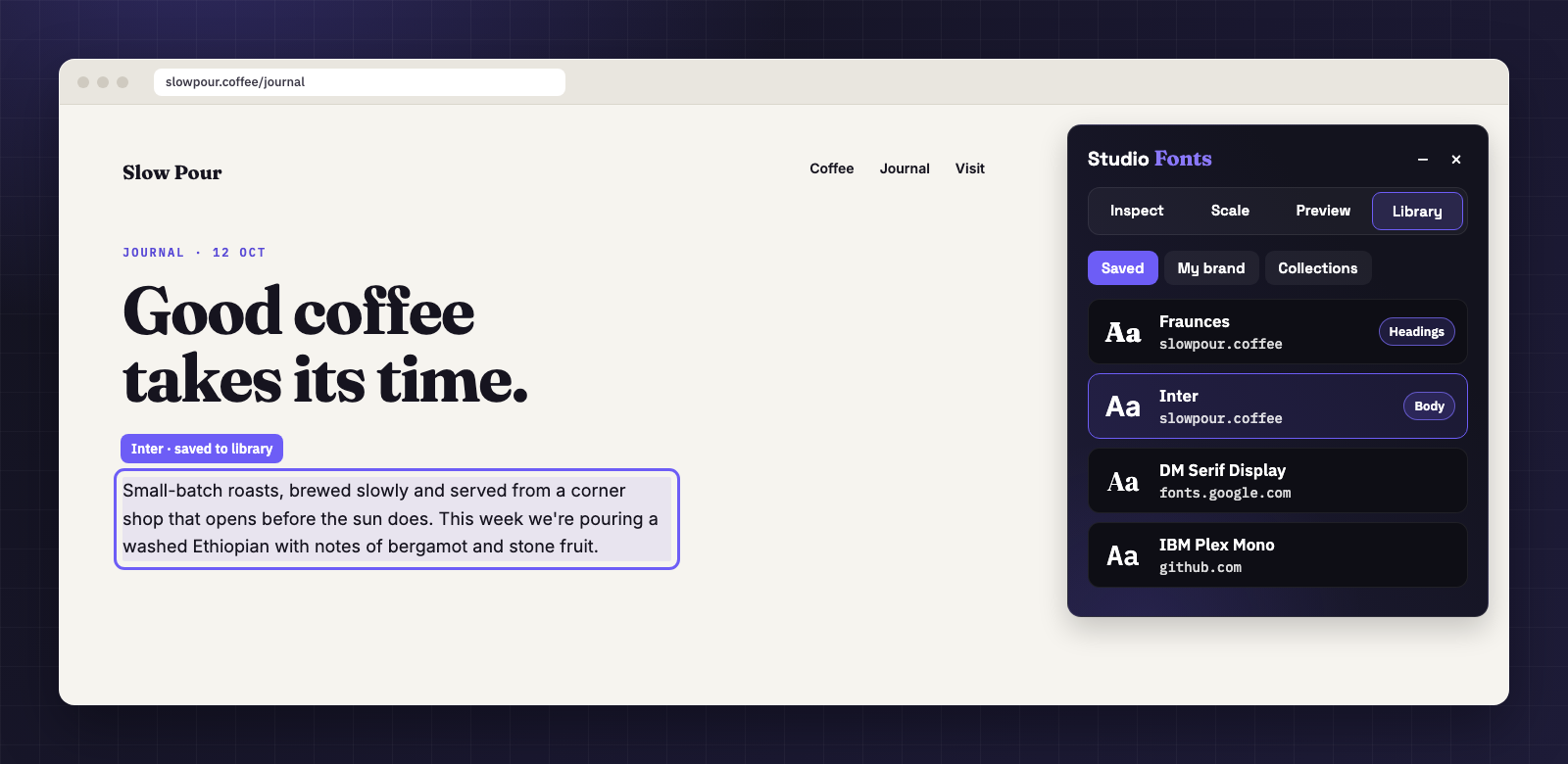
- Keep a library of the fonts you find, sorted into collections, each with a link back to the page where you found it. You can also set your brand fonts for headings, body text and buttons.
Why we built it
A lot of our design work starts with a site we admire, and every time we wanted to know what it was set in, we ended up in DevTools reading font stacks and guessing which name was actually loading. We wanted to see the answer the moment we pointed at the text and then try that font on our own pages. When a font earned a place in our work, we wanted it saved somewhere we could find again on the next project.
Like Studio Colour, it opens in a panel beside the page and closes completely when you’re done with it. It only runs on a tab after you open it there, and there are no accounts, analytics or tracking. Your library stays in your browser and syncs through your own Chrome account, and nothing you inspect or save is sent to us.
Free to start
Inspecting, the page scan, the type scale, the library and the printable PDF specimen are all free, and the free plan includes six live previews and six one-click saves from Google Fonts and Adobe Fonts each month. Studio Fonts Pro raises both to 500 a month, adds font-pairing suggestions for any font you inspect, and backs up your library to your own Google Drive or Dropbox, for $11.99 a year. Pro is a yearly subscription because it pays for steady updates, including new features, fixes and keeping up with each Chrome release, and the store delivers them to you automatically.
If you work with colour as much as type, Studio Colour picks, builds and exports colours from the same kind of docked panel.
Part of the suite
Studio Fonts joins Studio Colour and Studio Gauge, our free Mac menu bar app, in the Studio Grid suite. The two extensions share the same panel design, so if you already use Studio Colour, the tabs and buttons in Studio Fonts will look familiar. We’ll post here when the next tool in the suite is ready.
Get Studio Fonts
Install it from the Chrome Web Store and pin it to your toolbar. When you want to know what a font is, click the icon or press Alt+Shift+F (⌘⇧O on a Mac) and point at the text.